
- Windows 7 and above, running Chrome, Firefox or Edge. Internet Explorer is not supported
- MacOS 10.9 or later, running Chrome and Firefox. Safari not supported
- iPhone 5S or later, running iOS 11 and up
- Android 4.0 or later, running Chrome
Attendee FAQs
REGISTRATION
Q. I already registered but can't locate my email confirmation?
A: Updated registration confirmations for the virtual event platform were sent to registered attendees the last week in August, the email came from: epic@gladstein.org (registrations@bizzabo.com), with your unique login link and instructions to click the ACCESS YOUR REGISTRATION button at the bottom of the email to login.
Email Kimberly.Klonoski@gladstein.org if you haven't received the email, please be sure to check your spam/junk folder.
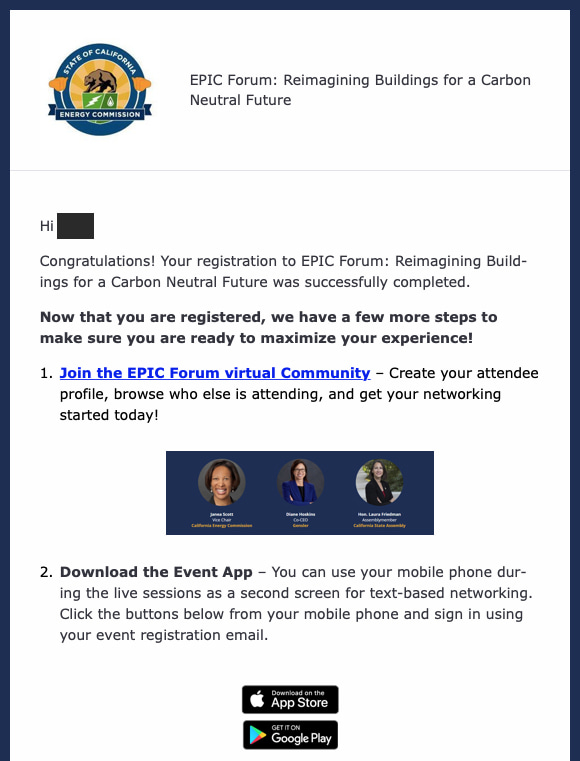
Q: What happens after I register?
A: Check your inbox for your registration confirmation email. Click the "Access Your Registration" link at the bottom of the email. Once you are registered, make sure you are ready to maximize your experience by joining the Community, where you can message another attendees.
*Please check your spam/junk folder if you do not see the confirmation email.
Q: What do I do if I have not received a registration confirmation email?
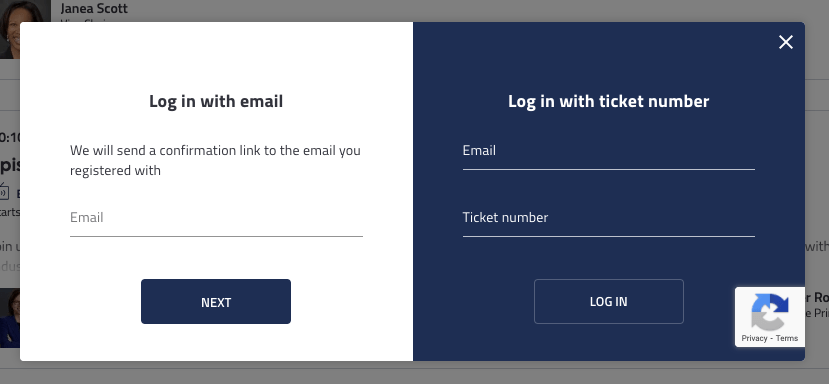
A: If you still have not received a registration confirmation email after checking your spam or junk folder, you can login to the event on the site itself. To do this, navigate to the Agenda page and click the "Log In" button at the top right. You will be prompted to enter the email address with which you registered, and a new confirmation email will be sent to your inbox.
If you are still having trouble, email Kimberly Klonoski at kimberly.klonoski@gladstein.org
COMMUNITY PROFILE
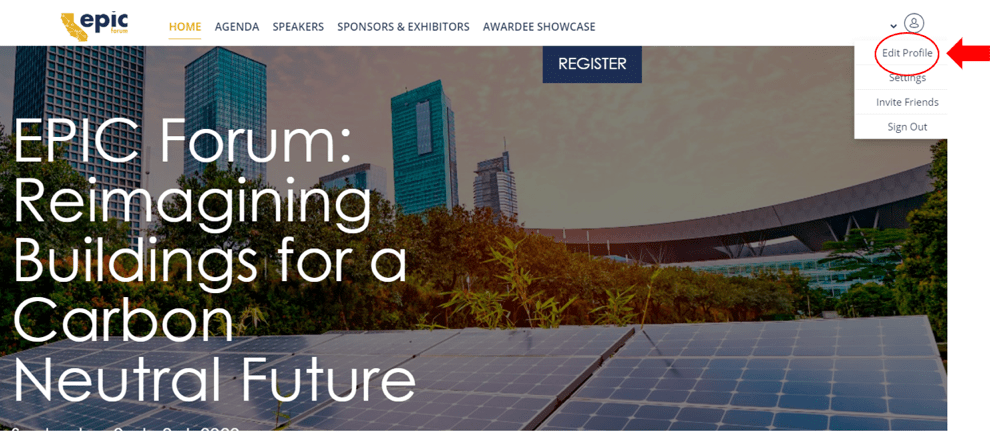
Q: How do I edit my profile?
A: Click the person icon on the top right corner. From the dropdown click “Edit Profile.”
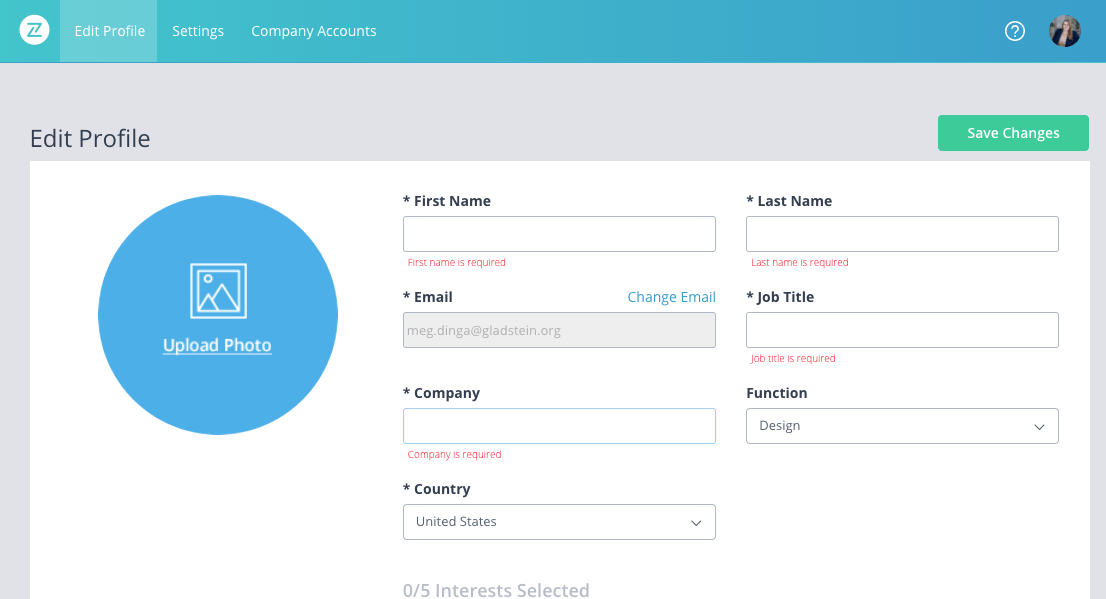
Q: What information can I add to my profile?
A: Now that you are in editing mode, you can control how your name is displayed, upload a picture, company description, etc.. Once information is completed, click “Save Changes.”
SESSIONS
Q: How do I join a session?
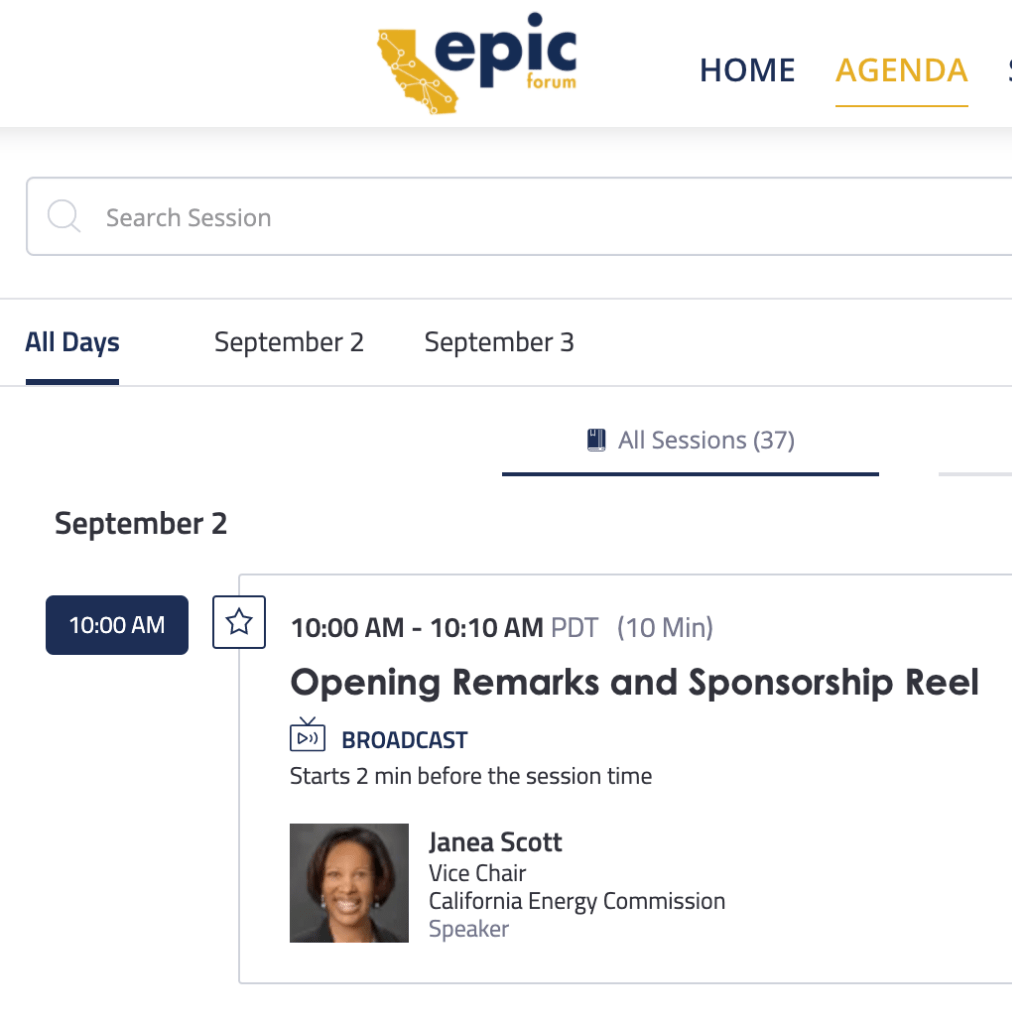
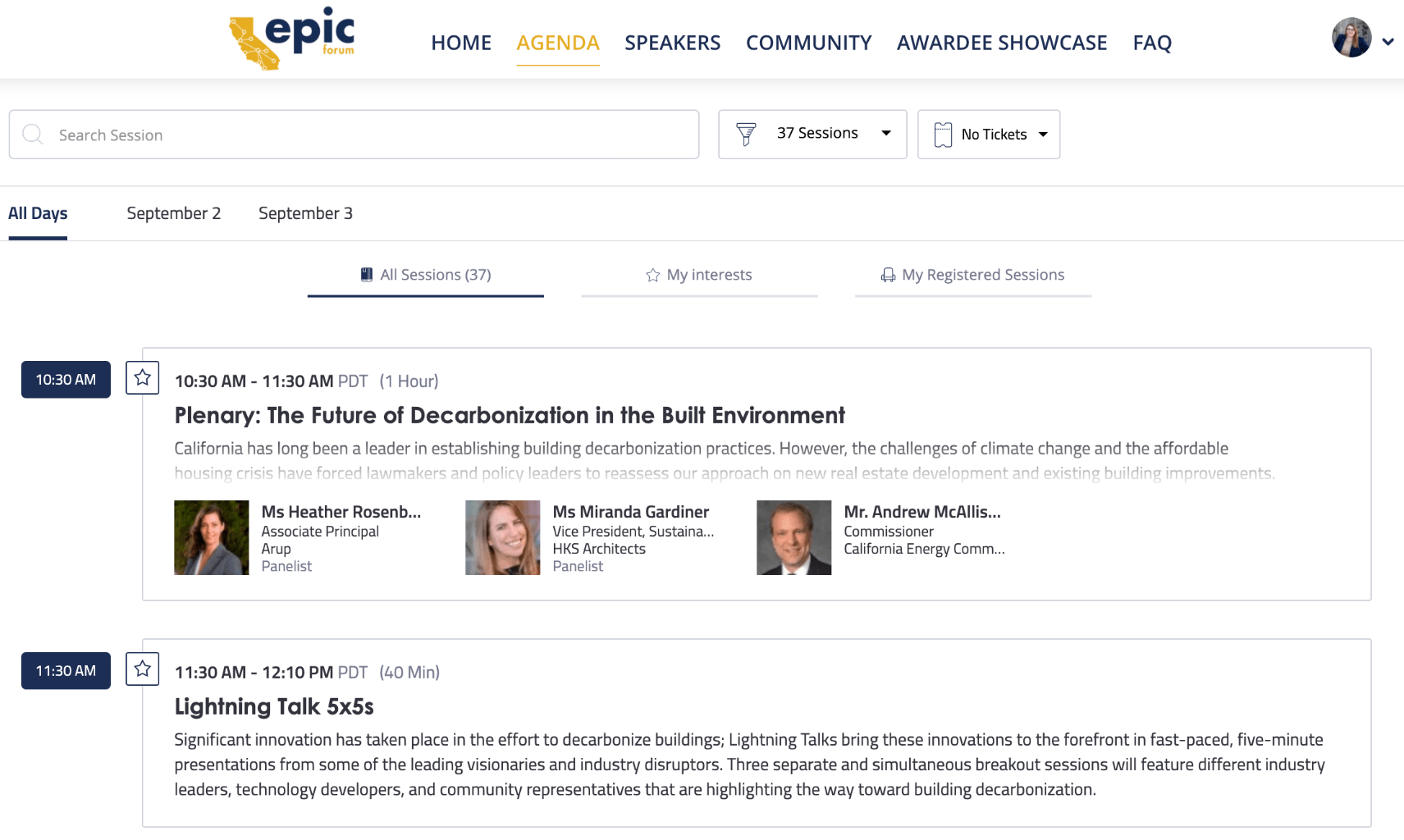
A: On the agenda page, select a session and click the “Broadcast” button under the session title. Broadcast will become available two minutes before the scheduled session start time.
When you click the “Broadcast” button, you may be prompted to login in order to join the session. Once you click “Login” a new page will open asking for the email address used to register your ticket.
Q: How do I move between sessions?
A: When a session ends, or if you decide to switch to a different breakout session, click the “Back” button to return to the agenda. You can then enter any other in progress session by clicking the “Broadcast” button for that session on the agenda.
The agenda includes a two-minute buffer between each set of sessions, to allow time to navigate to the next session.
Q: How can I ask questions during a session?
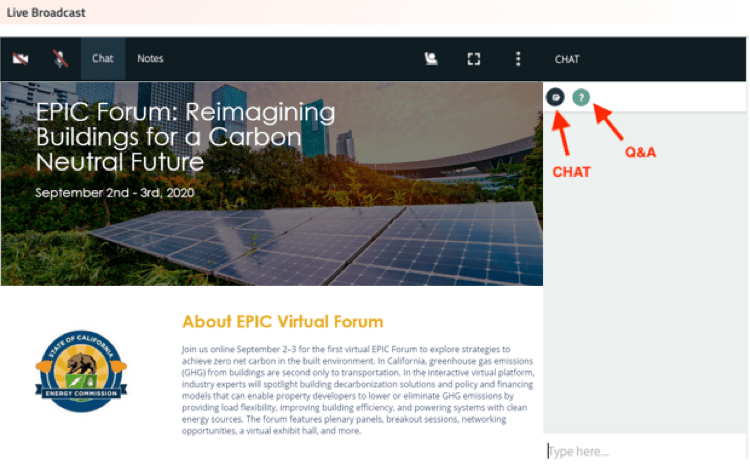
A: Most sessions will include time for audience Q&A. To ask your questions, please post them under “Q&A” within the session. Each session will also include a chat box for session-specific conversation. We encourage you to post comments and engage with your peers under “Chat.”
SUPPORT
GNA events hotline 888.993.0302 or email epic@gladstein.org
Click here for Bizzabo’s Troubleshooting Guide.
Q: What are the system requirements to join a session?
You can check if your system can use the Bizzabo Virtual Experience with our Quick Tech Check.
Please note, additional devices may successfully connect, but are not officially supported.
Q: The sound is coming out of a different device than I want - what can I do?
To toggle between multiple outputs connected to your device (e.g. internal speakers, headphones and AirPlay), click the gear icon on the top right of the live-streamed session. You will then be able to select which output and input devices should be used.
Q: The output device I want to use isn't showing up - how can I fix this?
First, check the physical connection to your device, by either unplugging and re-connecting your physical headphones, or toggling bluetooth on and off. If you are confident that the output device is connected correctly, check your system preferences to ensure your computer recognizes the device. On a Windows device, click the loudspeaker icon on the bottom right of your screen, and you'll be able to change output device. On a Mac, visit System Preferences > Sound to choose your output devices.
Q: My devices are connected properly, but I can't hear anything!
If you're confident everything is connected properly, your devices might be being used by another tool or application. Make sure tools like Zoom, Google Hangouts, Go To Meeting etc. have been closed prior to starting the session.
Q: I'm still experiencing issues - any final steps?
If you're still having issues, first send in your support logs by hitting the in the top right, then "submit support logs" on the bottom left. Next try restarting your computer and trying again.
Copyright Gladstein, Neandross & Associates LLC
